

Towers & health
Map of tower sites with daily health status (online / degraded / offline) and uptime. Power, battery and solar telemetry are shown as “not connected” until a supported controller is installed.
Platform
What each capability does, who uses it, how the workflow runs, and exactly what data it shows today.
Trends, congestion and forecast planning
Traffic & mobility teams, analysts, executives
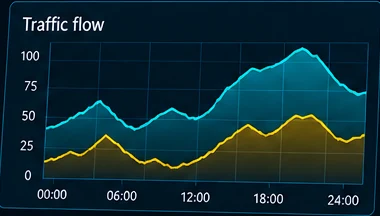
Freshness: hourly buckets. Gaps are shown as gaps, never filled in. Integration status: counts in the demo are synthetic; live counting requires connected cameras (planned).
Connect weather data with street observations
Command center, public works, executives
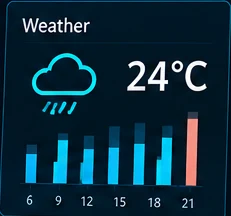
Freshness: hourly forecast. Measured sensors: not connected (no supported sensors yet). Camera-visual indications: demo data in this build.
Track hazards, repairs and work orders
Roads & public works, command center
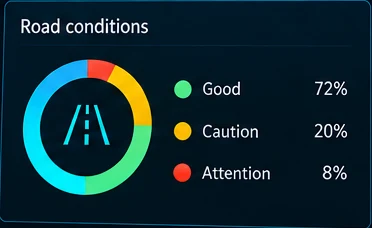
Freshness: immediate (records update when saved). Every step is written to the audit log.
Evidence-linked events with human review
Command center operators, municipal admins
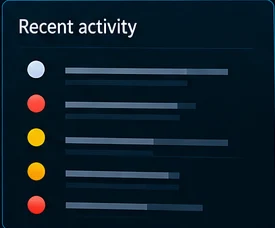
Integration status: event detection on live feeds is planned; this build reviews events derived from synthetic demo footage.
Bilingual reports, charts and history
Mayors & executives, analysts, auditors
Missing data is listed explicitly in every report (for example, “Live camera feeds: not connected”).
Approved views for offices and the public
Command center, office viewers, municipal admins, the public
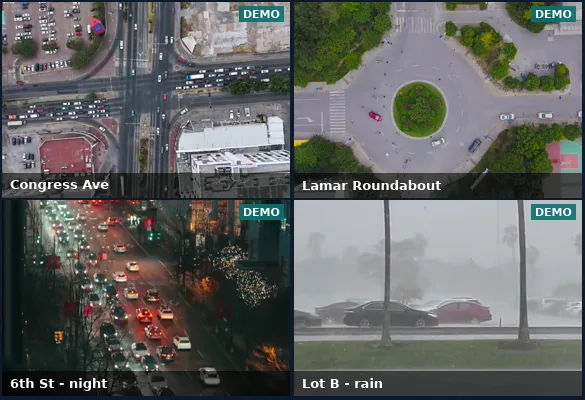
Integration status: live camera feeds require the media gateway (planned). This build streams synthetic demo footage only.
Module tour
Map of tower sites with daily health status (online / degraded / offline) and uptime. Power, battery and solar telemetry are shown as “not connected” until a supported controller is installed.
Grid and single-camera views with a replay timeline and seek-to-event buttons. Muted autoplay, lazy loading and automatic reconnect.
Search permitted cameras by time window (max 31 days), vehicle type, colour, direction and scene. No person, face or plate attributes exist to search. Every search is audited.
Hazard review, crews, due dates, updates and evidence-required closure.
For authorized case reviewers only: case number, purpose, time window, area and non-biometric descriptors. Returns candidate clips for human review. Biometric terms are rejected.
Daily, weekly and monthly reports plus custom TrakAI reports, with PDF/CSV export and full history.
Anonymous page with approved, delayed, audio-free views; kill switch and revoke; fails closed.
Roles & permissions
| Role | Overview | All cameras | Assigned cameras | Towers | Traffic | Weather | Event review | Work orders | Search | Cases | Reports | Publish public | Audit log | Users | Platform settings |
|---|---|---|---|---|---|---|---|---|---|---|---|---|---|---|---|
| Platform Super Admin | ● | ● | · | ● | ● | ● | ● | ● | ● | · | ● | ● | ● | ● | ● |
| Municipal/Tenant Admin | ● | ● | · | ● | ● | ● | ● | ● | ● | · | ● | ● | ● | ● | · |
| Mayor/Executive | ● | ● | · | ● | ● | ● | · | · | · | · | ● | · | · | · | · |
| Command Center Operator | ● | ● | · | ● | · | ● | ● | · | ● | · | · | · | · | · | · |
| Traffic/Mobility | ● | ● | · | · | ● | ● | · | · | · | · | · | · | · | · | · |
| Roads/Public Works | ● | ● | · | · | · | ● | · | ● | · | · | · | · | · | · | · |
| Authorized Missing-Person Case Reviewer | · | ● | · | · | · | · | · | · | · | ● | · | · | · | · | · |
| Analyst | ● | · | · | · | ● | ● | · | · | ● | · | ● | · | · | · | · |
| Auditor | · | · | · | · | · | · | · | · | · | · | ● | · | ● | · | · |
| Restricted Office Viewer | · | · | ● | · | · | · | · | · | · | · | · | · | · | · | · |
| Public Portal Demo Viewer | · | · | · | · | · | · | · | · | · | · | · | · | · | · | · |
| Client manager | ● | ● | · | ● | · | ● | · | · | · | · | ● | · | · | · | · |
| Client user | ● | ● | · | ● | · | ● | · | · | · | · | · | · | · | · | · |
| Monitoring team | ● | ● | · | ● | · | ● | ● | · | ● | · | · | · | · | · | · |
| Partner admin | ● | ● | · | ● | · | ● | · | · | ● | · | ● | · | · | · | · |
| Partner technician | ● | ● | · | ● | · | ● | · | · | ● | · | · | · | · | · | · |
Generated from the platform’s live permission table. Case access is limited to authorized case reviewers — not even platform super admins have it. Everyone can view approved public streams.